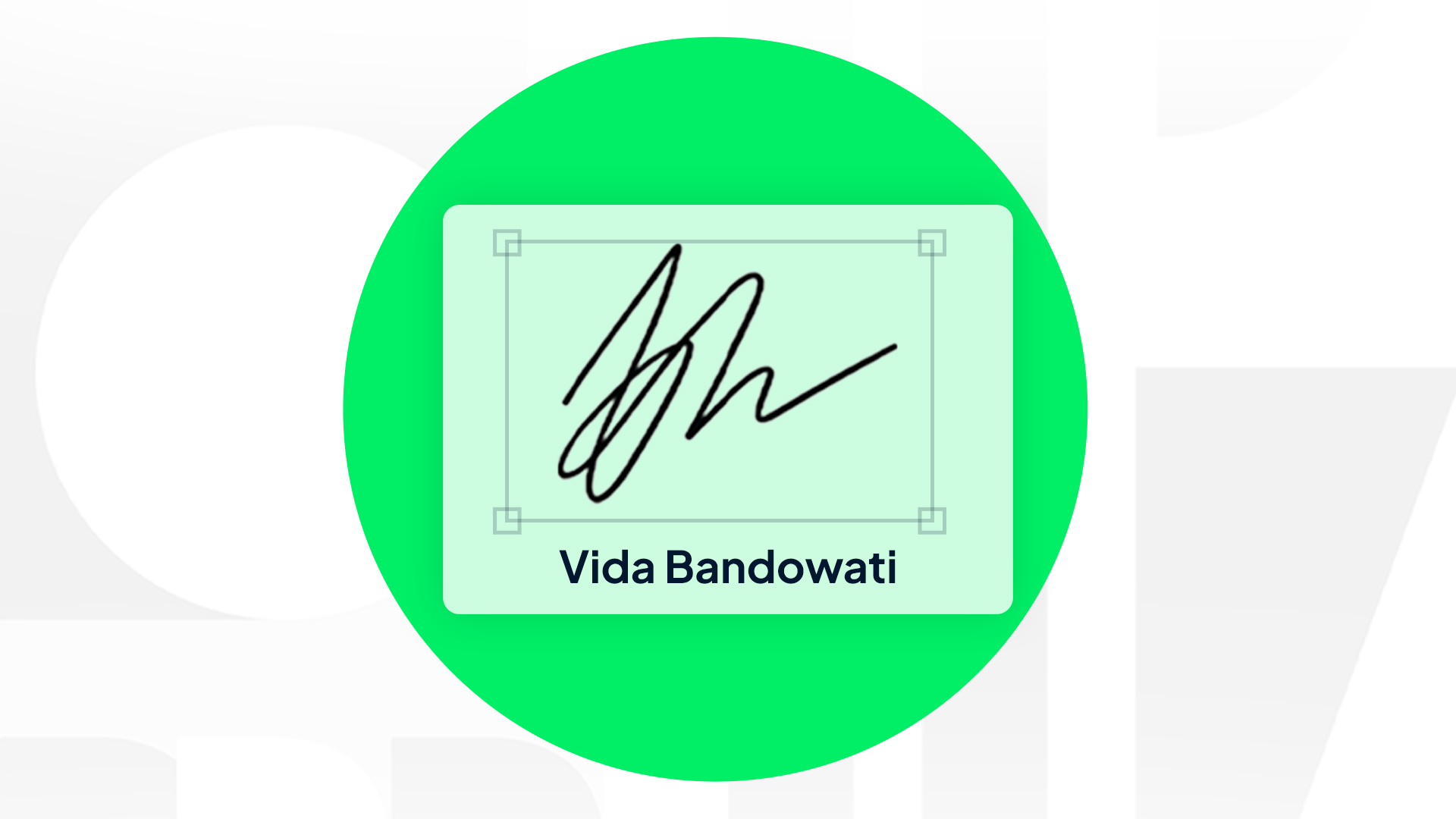
In recent years, more financial institutions have started transitioning to paperless systems. This shift has transformed how we work—from creating documents, signing them, to sending them.
Although everything is ideally digital, document signing is still often done manually: signing on paper, then scanning it to send again. The result? A PDF file with a messy, blurry signature background that looks unprofessional and is vulnerable to forgery.
That’s why the need to remove the background from signature images has become crucial—especially when the signature is used in important documents.
So, how can you remove a signature background to make it cleaner and more secure?
Guide to Removing Signature Backgrounds
Removing a signature’s background is usually done to make it look more professional when placed on digital documents. Here are some common methods:
1. Using Background Removal Apps
You can take a photo or scan your signature, then remove the background using a background remover app or feature. The results depend on the tool you use. Removing a plain white background is usually straightforward.
2. Using Microsoft Word or PowerPoint
Both Microsoft Word and PowerPoint offer an automatic “Remove Background” feature. Simply click on the signature image → Format → Remove Background. While easy, the results are not always clean or perfect.
3. Using Online Background Remover Websites
There are many free websites such as remove.bg, PNGTree, and others that can remove signature backgrounds. However, be cautious—uploading your signature to untrusted websites may lead to data leaks or misuse.
4. Using Scanner Apps
Some scanning apps like Adobe Scan or CamScanner offer background removal features. Still, you should be careful when storing or sharing your files.
Digital Signatures for Important Documents
A signature with its background removed and pasted onto a digital document is often referred to as a “digital signature.” But is a background-removed PNG signature truly secure? Unfortunately, not necessarily.
Such signatures can still be reused or misused by unauthorized parties if they are not protected legally or technologically.
Instead of manually removing backgrounds and worrying about security, many companies are now adopting certified electronic signatures—this is what we properly refer to as digital signatures.
Unlike simple background-free signatures, digital signatures are protected by an electronic certificate embedded within them. In simple terms, they cannot be used by others, even though they are digital.
Here’s what makes digital signatures different:
1. Legally Valid
Digital signatures are regulated under Indonesia’s Electronic Information and Transactions Law (UU ITE) and Ministry of Communication Regulation No. 11 of 2018 on Electronic Certification.
They carry the same legal force as handwritten signatures when issued by a certified Electronic Certification Authority (PSrE).
2. Verifies the Signer’s Identity
Each digital signature uses an electronic certificate issued by a PSrE, ensuring the signer’s identity is officially verified and non-repudiable.
3. Ensures Document Integrity
Once a document is digitally signed, even the smallest change can be detected, ensuring the document remains authentic and intact.
4. Cannot Be Forged or Reused
Each digital signature is unique, tied to a specific identity and document, and cannot be copied or transferred to another document.
Removing a signature’s background does not automatically make it secure or legally valid. In fact, manual processes like this can create opportunities for manipulation and document forgery.
VIDA offers two digital solutions that replace these outdated methods with automated, secure processes that comply with Kominfo regulations, PSrE standards, and OJK requirements.
Digital Signatures Without Background Removal
1. SelfieSign
SelfieSign is a digital signature solution based on facial verification, ensuring that the signer is a real person—not just an edited or pasted signature.
This type of signature is commonly used by financial institutions to confirm user consent. For example: credit approvals, digital account opening, or financial service activation.
2. POASign (Power of Attorney Sign)
POASign is a digital approval solution based on authorized representation, ensuring that documents are signed by the correct party and fully recorded in an audit trail.
For example, if you are an insurance client signing a policy, the insurer’s signature already included in the document is typically a POASign.
POASign is commonly used in: insurance claims, contract amendments, or legal representation appointments.
SelfieSign and POASign are more secure than background-removed signatures because they are supported by the following technologies:
- Liveness Detection to ensure the verified face is a real human, not a deepfake
- Automated Document Verification (OCR + Landmark Analysis) to detect fake or edited ID documents
- Automatic Audit Trail that records who signed, when, and from which device
- Compliance with PSrE, OJK, and Adobe AATL, ensuring cross-jurisdiction legal validity
With SelfieSign and POASign, companies no longer need to request scanned signatures, manually remove backgrounds, or worry about signatures being reused by unauthorized parties.
.png)